How to Use DrawTheDraw: The Full v1.1 Practice Flow
DrawTheDraw is a lightweight desktop app for timed reference practice, repeated attempts, review, and redraws. It makes the practice loop cheap to restart: open the app, choose what to practice, draw, then compare what changed instead of losing the work in a folder.
This walkthrough was written for v1.1.0 beta.1. Screenshots and controls reflect that release; later versions may differ. For the latest release, downloads, and changes, see itch.io.
Contents
- First run
- The Home page
- Setting up a session
- Gesture sessions
- Drawing sessions
- Brushes and drawing tools
- Reviewing what you drew
- Redo and Continue
- The free demo
- Where your data lives
First run
The welcome screen asks you to choose a folder of reference images. The folder chooser starts from your Pictures folder and remembers the last reference folder you selected. The full version can use more than one folder; the demo keeps one active folder at a time.
The app indexes images only inside the folders you choose. Your references are not uploaded, and the app does not require an account, license server, or cloud connection. Settings, session history, reference copies used for review, and saved drawing PNGs stay on your machine.
After adding a folder, you land on Home.
The Home page
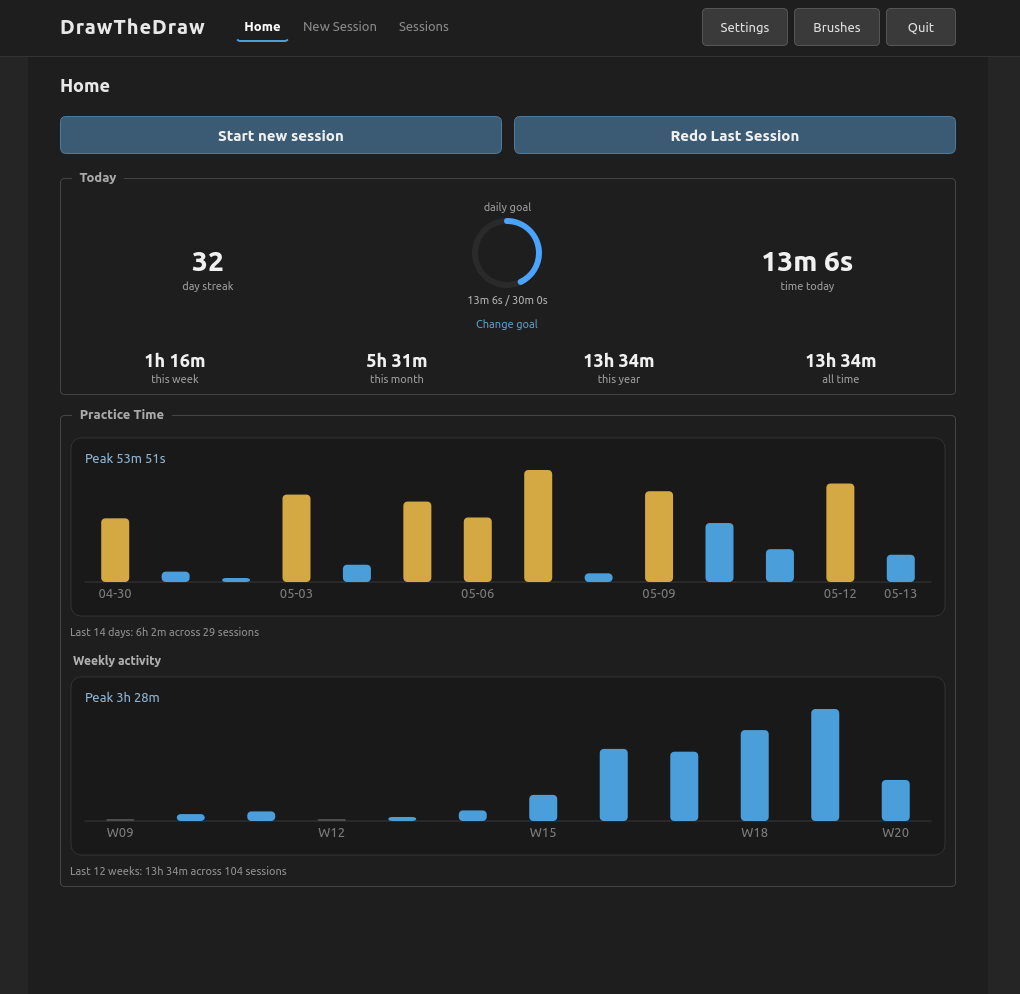
Home shows whether you have practiced today and gives you a fast way to start again. Its two main buttons open a New Session or redo your last counted session.
The Today card shows:
- engaged practice time today
- totals for this week, month, year, and all time
- optional daily-goal progress
- an optional uncapped daily streak
Before you practice on a new day, yesterday's streak can appear as at risk instead of immediately resetting. Practicing that day continues the same streak.
Below the card, a 14-day chart shows engaged practice time rather than simply counting how long the app was open. Once enough history exists, Home adds a longer weekly view. Full session history lives in the separate Sessions tab, where older sessions can be reviewed or redone.
Setting up a session
There are three practice flows in v1.1:
- Gesture is a timed reference slideshow. Use it while drawing on paper, in another app, or simply studying the images.
- Drawing puts the reference and built-in canvas side by side, moving through a planned set of images.
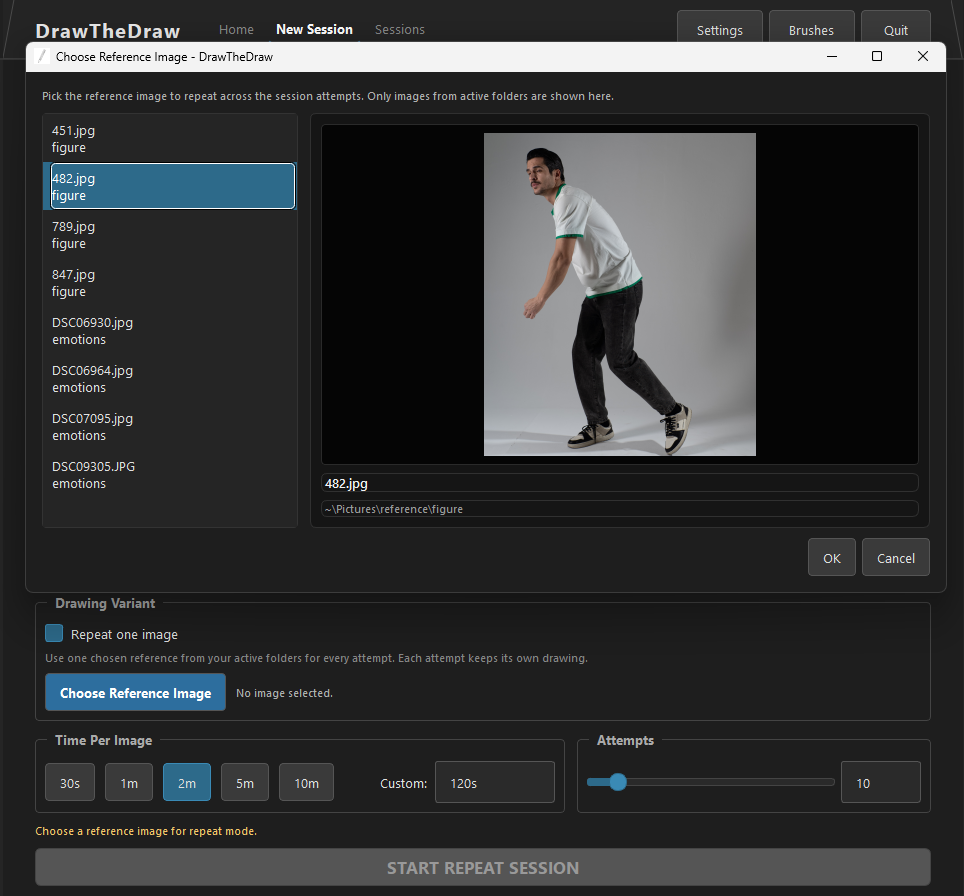
- Repeat One Image uses one chosen reference for several separate drawing attempts.
New Session lets you choose active reference folders, time per image, and the number of images or attempts. The app remembers the last-used mode, duration, and count.
Repeat One Image adds a reference picker and preview. The session counter keeps the original plan visible even if you keep adding attempts: for example, attempt 4 / 3 means you planned three and continued to a fourth.
Normal sessions pick their images in a fixed order for that session, so Redo can replay the exact same set instead of a fresh shuffle.
Drawing handedness is configured on the separate Settings page. Right-handed layout keeps the reference on the left and canvas on the right; left-handed layout swaps them. The setting persists between sessions.
Gesture sessions
A gesture session centers the current reference and advances when its timer expires. Pause stops the timer, and End Session finishes the run early.
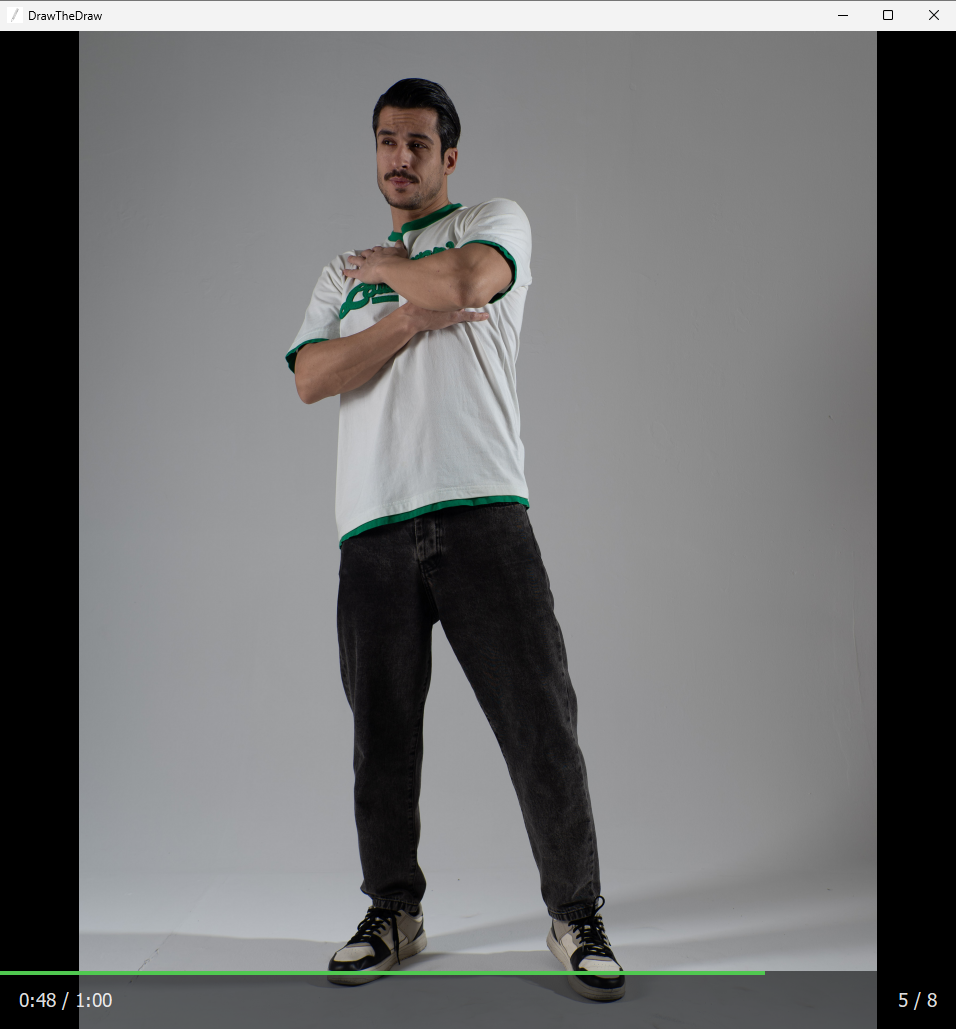
When the planned image set ends, the app asks whether to finish or continue. Continuing repeats the same set inside the current session rather than creating another run.
Drawing sessions
Drawing sessions show the reference beside a fixed-size canvas. Resizing the window changes the display scale, not the underlying canvas document, so a mid-session window change does not recenter or resize the drawing itself.
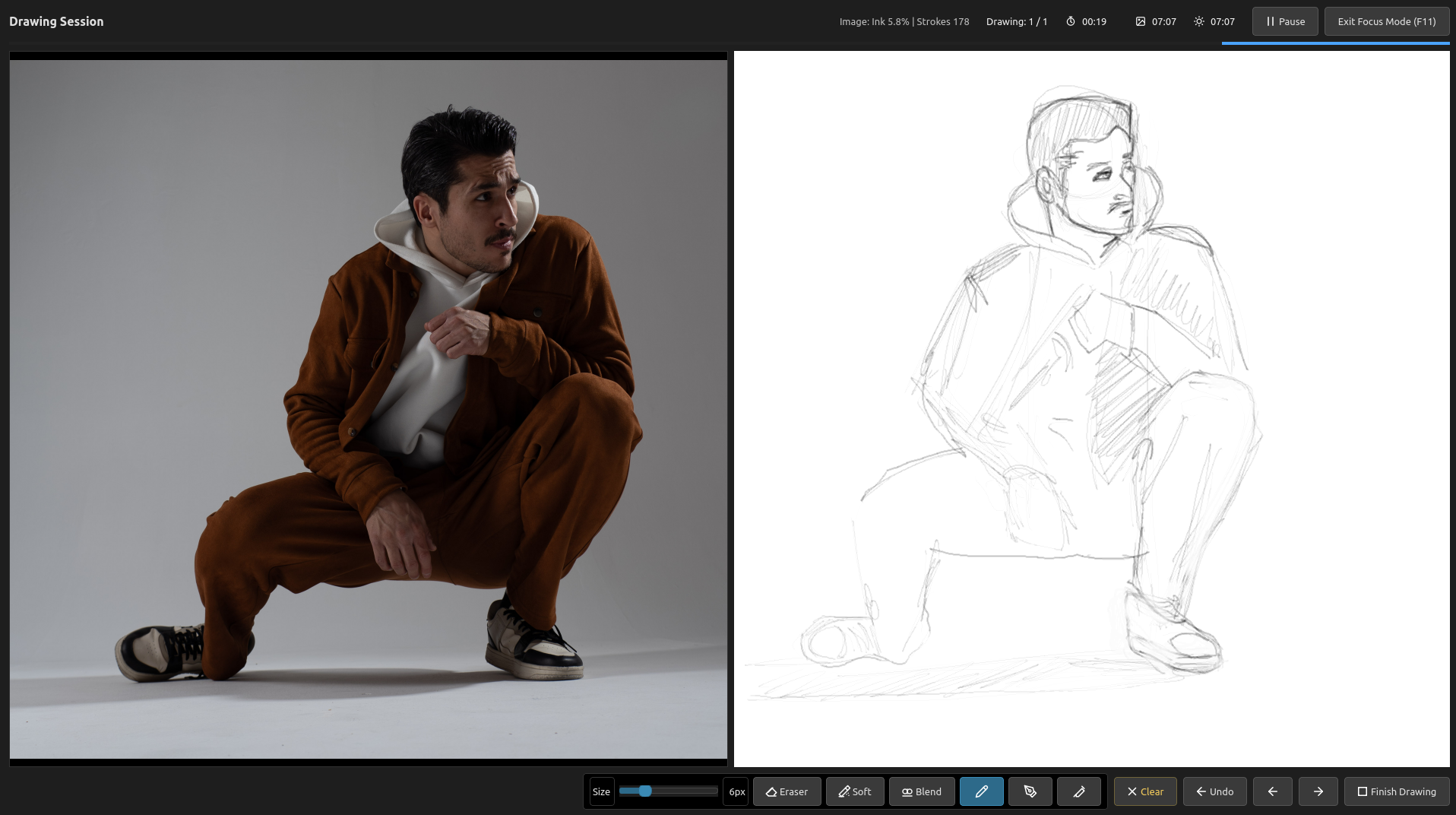
The header separates three kinds of time:
- Remaining is the countdown for the current image or attempt.
- Image time is engaged drawing time on the current image.
- Today time is engaged drawing time accumulated today.
If you stop making marks for 15 seconds, engaged time pauses automatically. The countdown continues unless you use the explicit Pause button. Drawing again resumes engaged-time tracking.
Each image or attempt keeps its own canvas while the session is active. Previous returns to earlier work; Next saves the current state and advances. Clear is covered by the same three-step canvas undo as other canvas-changing actions, so an accidental clear can be recovered.
Normal drawing sessions offer End or Continue after the planned set. Repeat One Image behaves differently: it keeps appending attempts instead of looping back to attempt one or showing that prompt.
Drawing sessions also have Focus Mode, available from the header or with F11. It is drawing-session-only; leaving the drawing view also exits Focus Mode.
Brushes and drawing tools
The built-in canvas has three brushes:
- Ink for a clean opaque line
- Pencil for a lighter textured line
- Airbrush for building soft tone
Next to the brushes, the tool row has a sharp eraser, a soft eraser, a blur/blend tool, Clear, and a bounded three-step Undo. Tablet pressure changes stroke width; mouse drawing uses the configured brush size.
Each brush keeps its own size, opacity, and flow. You can adjust those from the drawing-session toolbar while you work, or on the separate Brushes page, which has a test canvas for trying settings outside a session.
Reviewing what you drew
After a drawing session, the summary shows the original references beside the saved drawings. Repeat One Image summaries are organized as attempts, because every card shares the same reference.
From summary or review you can:
- open a drawing beside its reference
- move through saved drawings manually or with slideshow autoplay
- overlay a drawing on the reference to inspect proportion drift
- copy the saved PNG to the clipboard
- delete a selected saved drawing
- continue a drawing as another revision
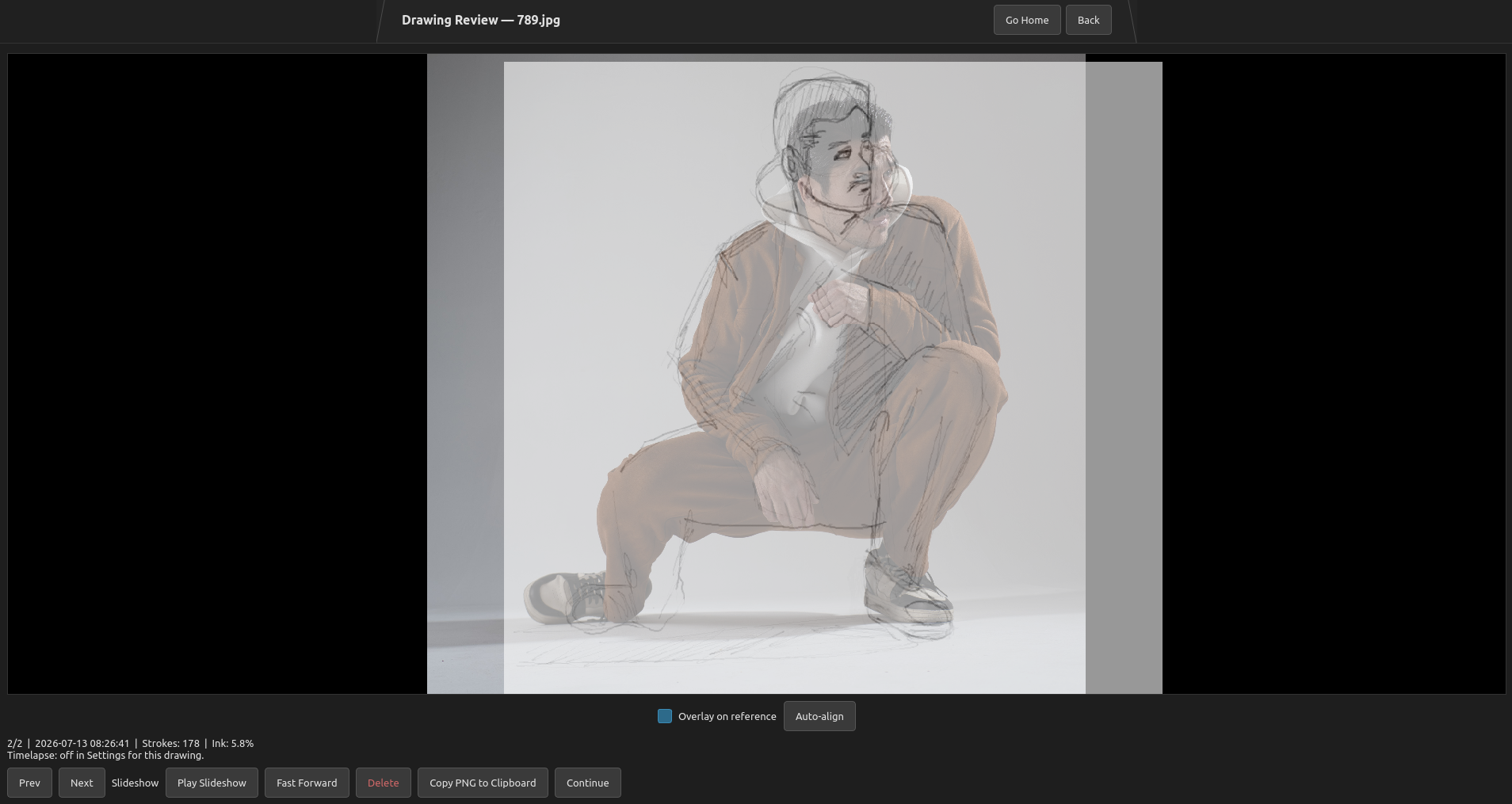
If Record drawing timelapses (experimental) was enabled in Settings when a drawing was made, review also provides playback, scrubbing, speed controls, and GIF export. Recording is optional because it uses additional memory while drawing and extra disk space for the replay sidecar.
Redo and Continue
These solve different problems:
- Redo creates another session from the same captured image set and settings. It is the path for repeating a practice run with blank canvases.
- Continue loads one saved drawing and its reference as the starting point for another revision. It records engaged drawing activity, but it is not a new session and does not change the source session's Redo target.
The app keeps local reference copies used by review, so old work remains reviewable if a source folder is moved or removed from the active library.
The free demo
The demo uses the same practice flow with three limits:
- one folder at a time
- one active session slot
- up to 3 images or attempts per session
Redo and Continue remain available for the demo seed. The goal is to let you test the real loop with your own references before deciding whether the unrestricted version fits your practice.
Where your data lives
On Windows, local app data lives under %APPDATA%\DrawTheDraw. On Linux it lives under ~/.local/share/DrawTheDraw.
That data includes the SQLite session database, saved drawing PNGs, optional replay sidecars, and cached reference copies used for review. Deleting the extracted app folder removes the portable application; deleting the data folder separately also removes local history and saved work.
The broader case for making practice easier to start is in The Setup Tax, and the case for practicing from reference in the first place is in You Need to Draw from a Reference.
There is a free demo on itch if you want to try the flow with your own reference folder.